This article is regarding the new feature for Unit Product Types / Unit Data Fields that sit under System Settings > Settings and Control - Unit Product Types
This article will also explain that you can add these fields to any Unit Report
Unit Product Types / Unit Data Fields
This is where the Dealership can setup Unit Product Types and what Unit Data Fields can be allocated to show up on any Unit Record that has that specific Unit Product Type

What is a Unit Product Type?
It would be what type of Unit Product does your Dealership sell ie Trailers / Golf Carts / Motorcycles / Powersports etc
Then attached to that specific Unit Product Type, you can have Unit Data Fields that will show up on the relevant Unit Records and also it you need them to show up on specific documentation
As you can see above, each Dealership is setup with a Generic Product Type
Your Dealership can just modify this Unit Product Type and use it for all your Units - to modify, simply click on  and then just go through the Unit Product Type& Data Fields pop up
Or alternatively if you want to create a new Unit Product Type by clicking on  and go through the Unit Product Type & Data Fields pop up and make your selections

| A. | This will list the Product Type Name |
| B. | Is this Product Type active in your Blackpurl Move the toggle accordingly |
| C. | Will this Product Type will be the default in your Blackpurl? Move the toggle accordingly For example - each time you receive a new unit into stock, this will be the Product Type default that will be added to the Unit Record |
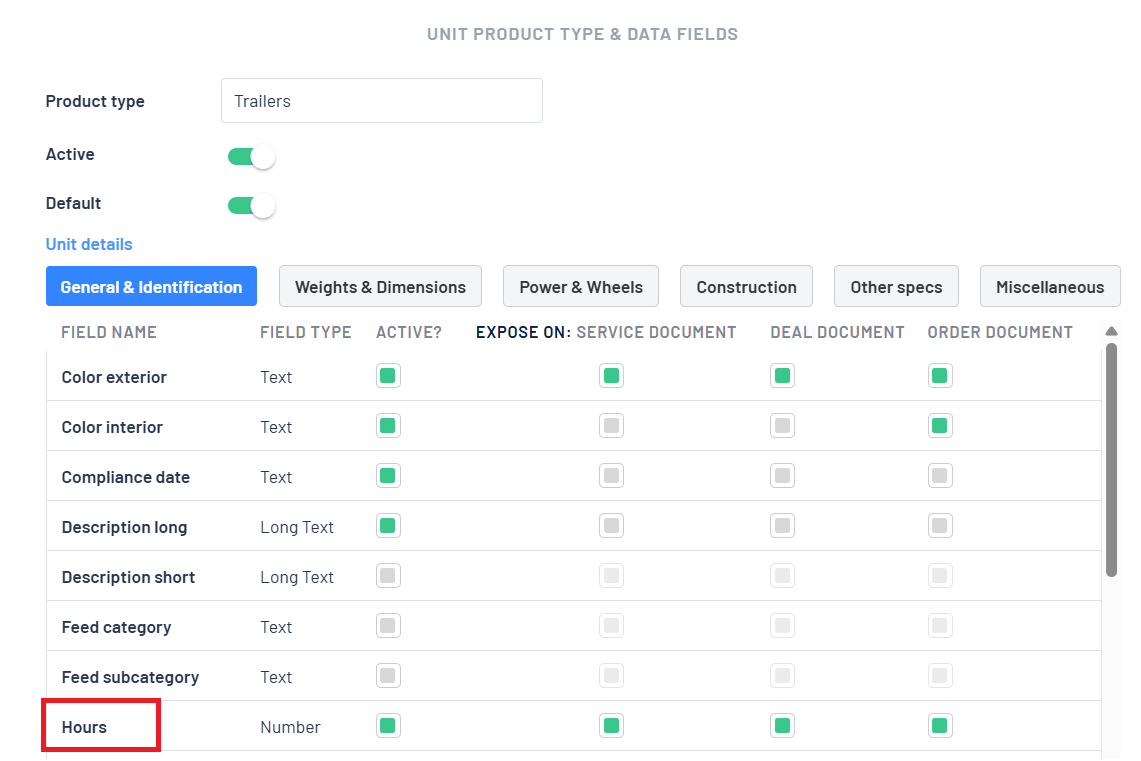
| D. | Unit Details tabs Each one of these tabs have specific Unit Data Fields available for selection You can click on the relevant tabs to see what is available and make your selection |
| E. | These are the Unit Data Field under that tab and you get to select: - Field Name - what is the name of the Unit Data Field - Field Type - is it a text field / long text field / number / date etc - Active - is that particular Data Field to be active. Check or uncheck the checkbox as the case may be - Expose on - Service documents / Deal documents / Order documents If you want the Unit Data Fields to show up on the Service documents / Deal documents / Order documents etc, then check or uncheck the checkbox accordingly |
| F. | Once you have finished - make sure you click  |
Where to see these Product Types / Unit Data Fields in Blackpurl
There are several places where these Product Types and Unit Data Fields will show up in Blackpurl
Unit Records
Simply click on  on any Unit Record to fill in any of these Unit Data Fields

Customer Owned Unit Records
Simply click on  on any Customer Owned Unit Record to fill in any of these Unit Data Fields

Unit Ordering
When creating a new Order Unit

Reporting on Units using the Unit Data fields
When generating any Unit Reports (Stock Unit Report / Stock Unit Valuation etc), you can add the Unit Data fields to the report as a search filter and/or as additional columns
In our examples below we have indicated that Hours is an Unit Data field available and we will use this Unit Data field as our example to show you how to filter and/or show that additional column on any Unit Report
Using Unit Data Field as a Search Filter
- When we run any of the Unit Reports ie Stock Unit Report, we can add the report filter to show us all the Units that have Hours = 5
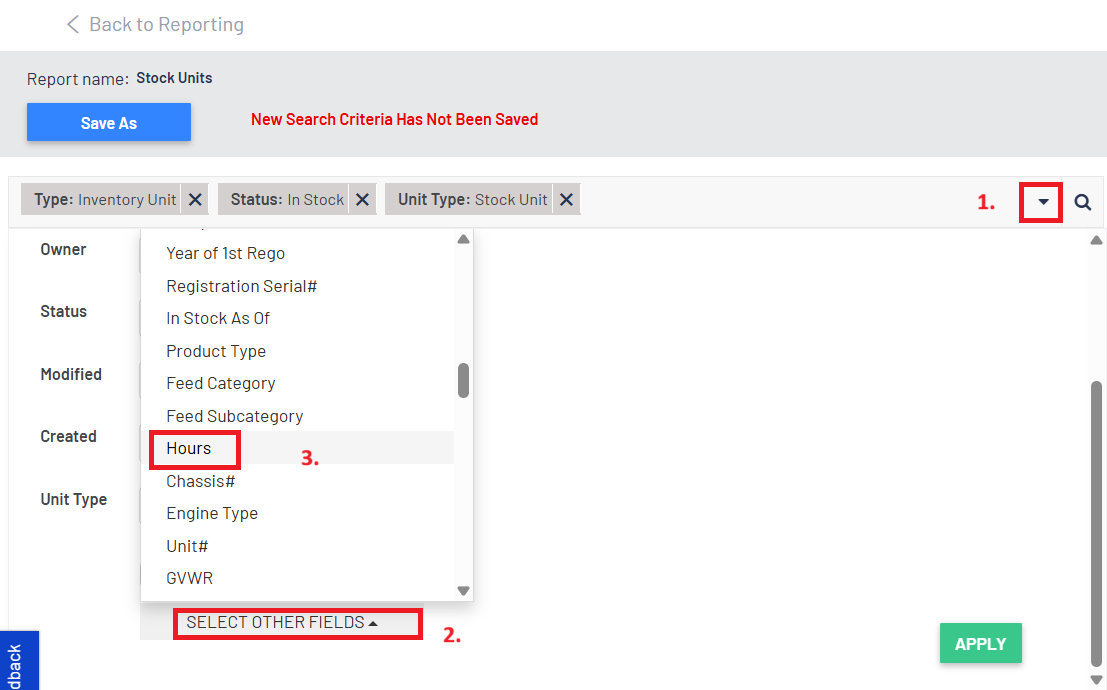
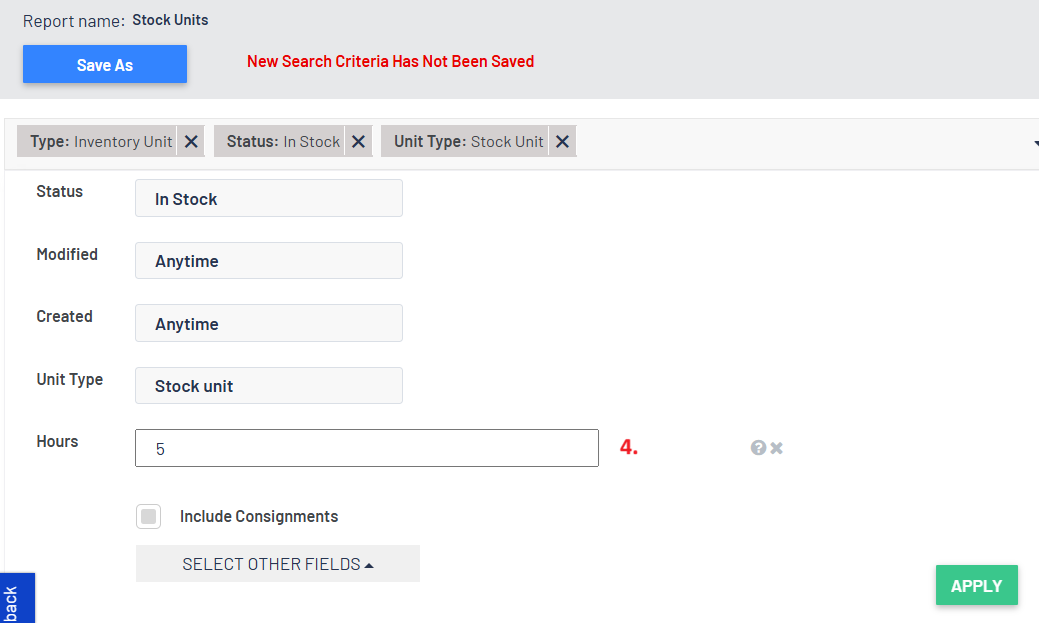
- And then just add the number of Hours that we want to search for - in our example, we added 5
The report result will show only those Units with the Hours of 5
- You can add this type of filter for any of the Unit Data fields that you use so that you can narrow down your report to show specific Unit Data fields
Adding Unit Data Fields as a column on the Report
- When running any of our Unit Reports, you can just add the relevant Unit Data field columns to the report
- In our example, we are running a Stock Unit Report and want to see the column Hours on the report
Simply click on 
Search for the Unit Data field name you want and make sure you check the box
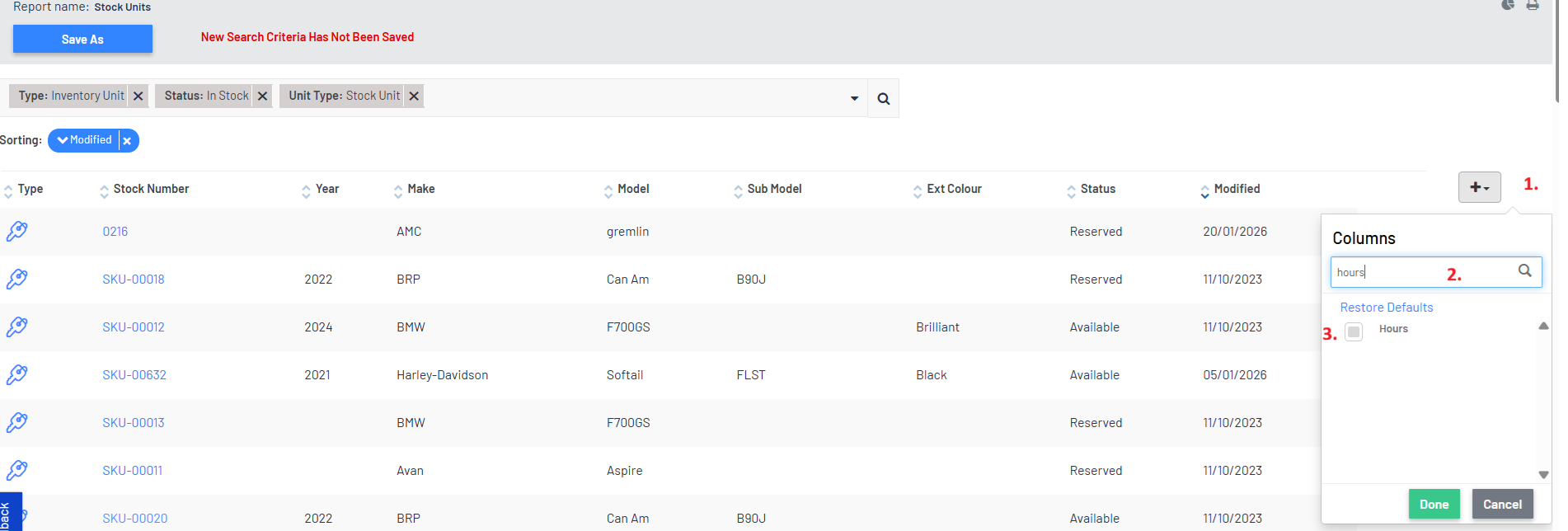
- Then the report will add that column (or any that you select) to the report
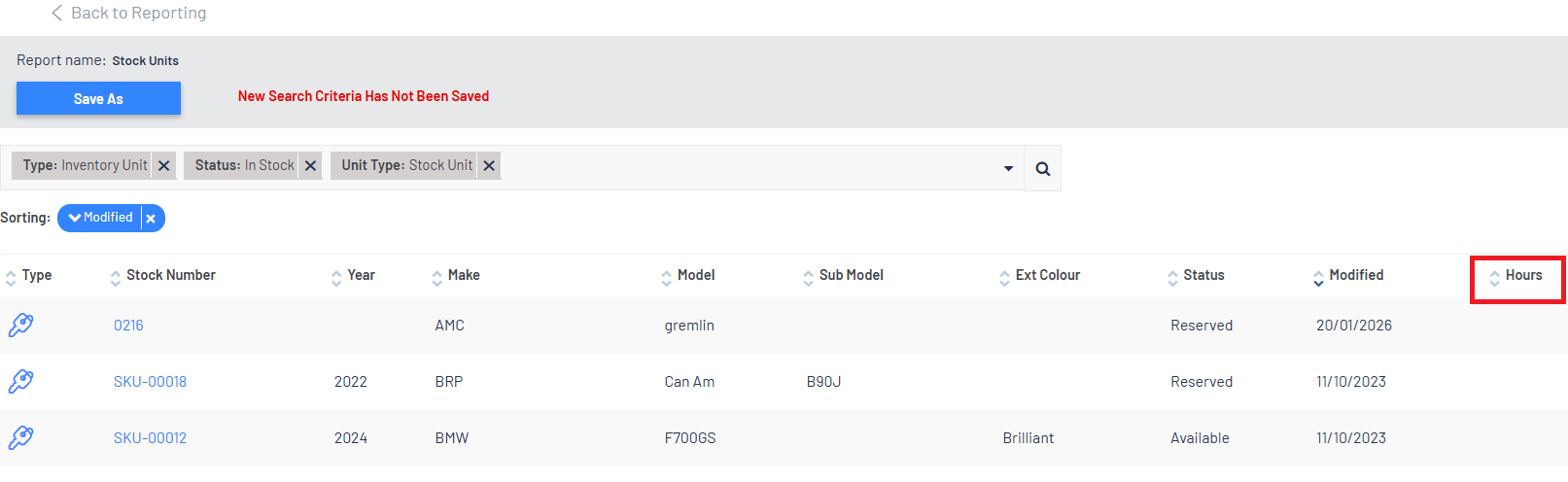
- You can add any of the Unit Data field columns that you want to the report
Was this article helpful?
That’s Great!
Thank you for your feedback
Sorry! We couldn't be helpful
Thank you for your feedback
Feedback sent
We appreciate your effort and will try to fix the article