July 2, 2026
Overview
If a page in Blackpurl isn’t loading correctly — for example it appears blank, shows outdated information, or doesn’t respond after an update — the cause is often stale data stored by your browser. Clearing the site data that Google Chrome has saved for Blackpurl usually resolves the issue. This article walks you through the steps.
Note: This issue only affects the Classic Customer Order (CO) page — the new CO experience is not affected. If you'd like to avoid the issue entirely, simply switch to the new CO. Our team is working on a permanent fix for Classic CO. In the meantime, if you prefer to keep using Classic CO, the steps below serve as a workaround. Our team is working on a permanent fix for this issue. In the meantime, the steps below serve as a workaround.
Steps
Log in to your Blackpurl org in Chrome.
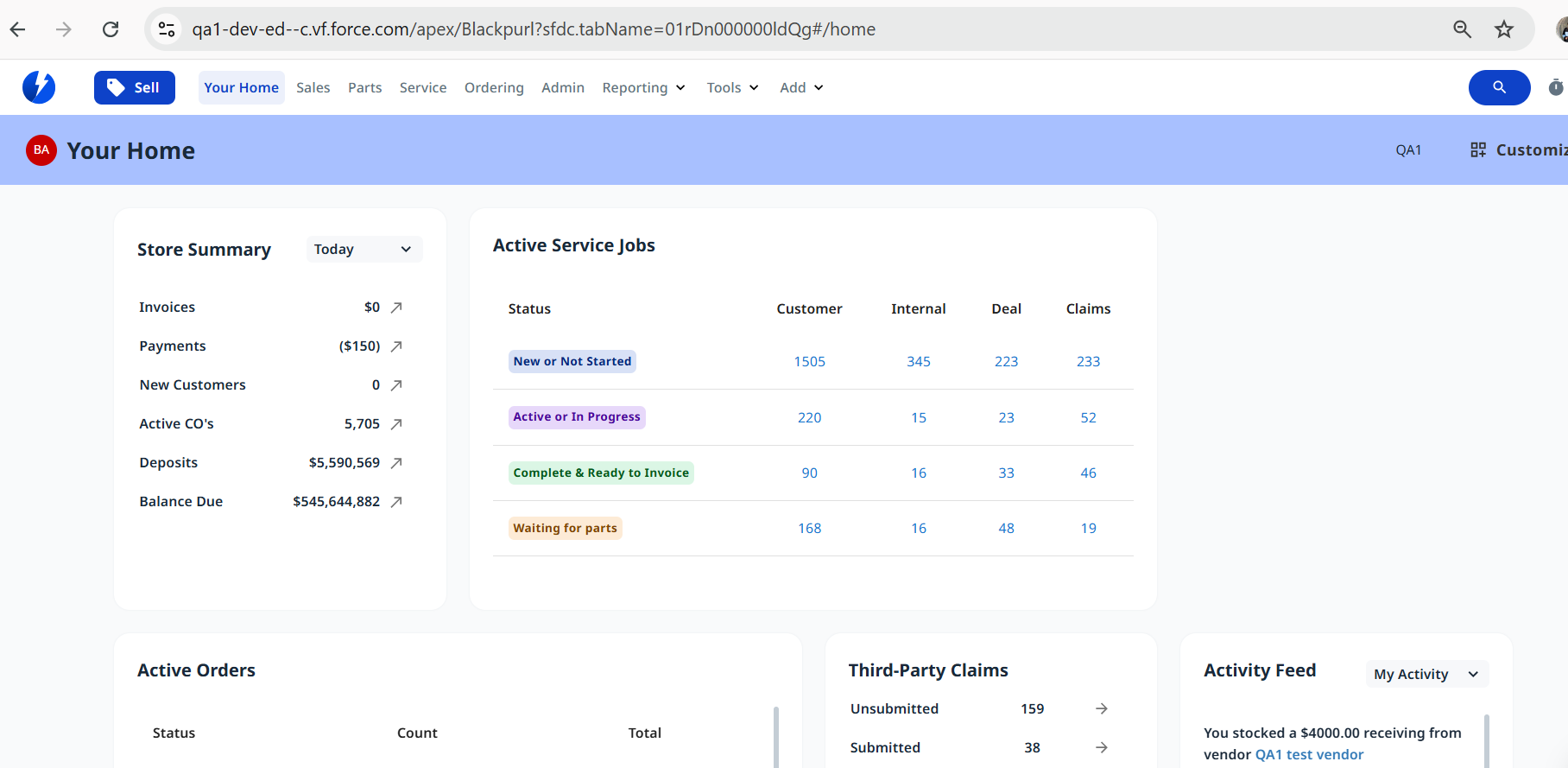
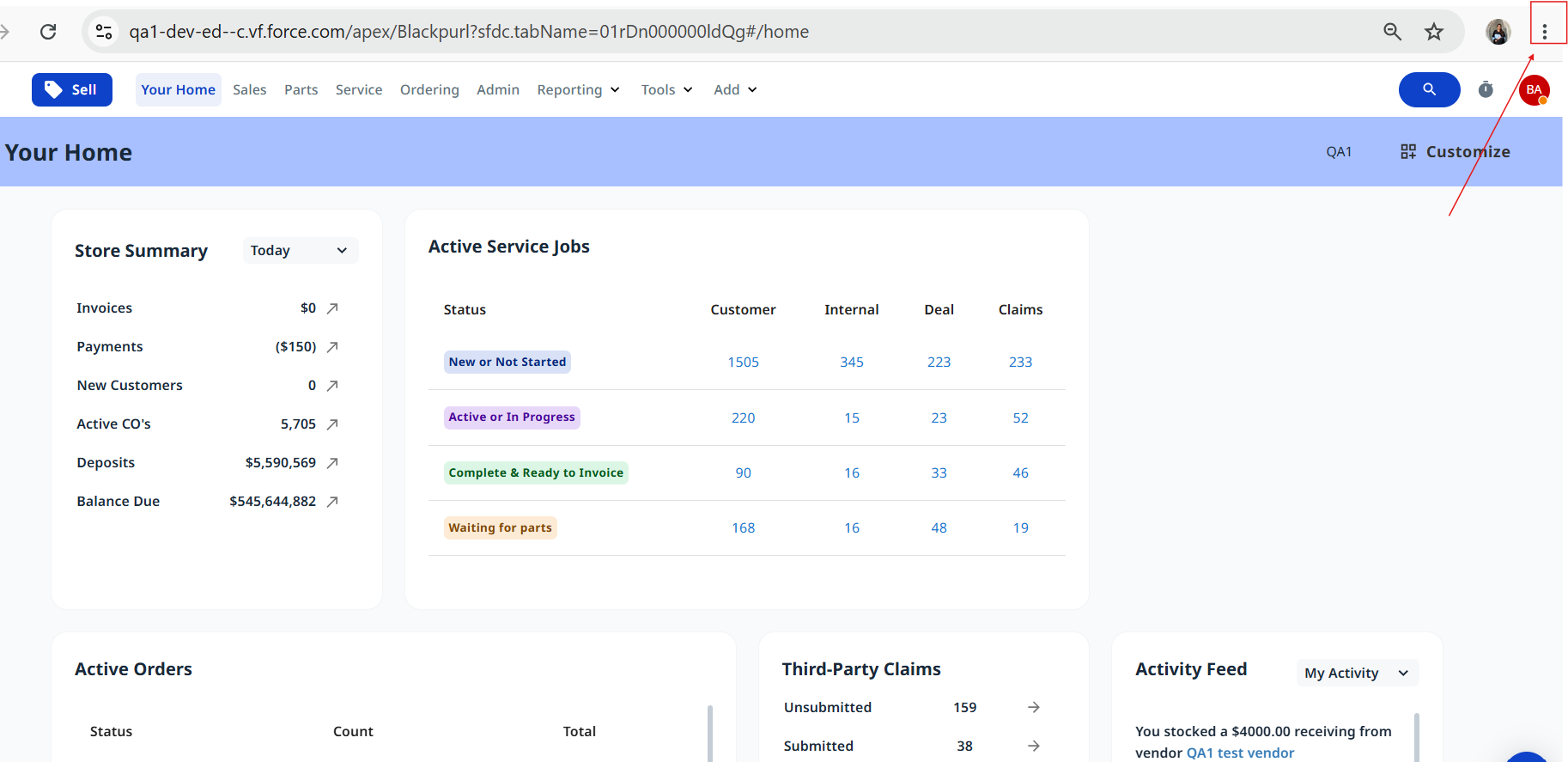
Click the three dots in the top-right corner of Chrome and select Settings.
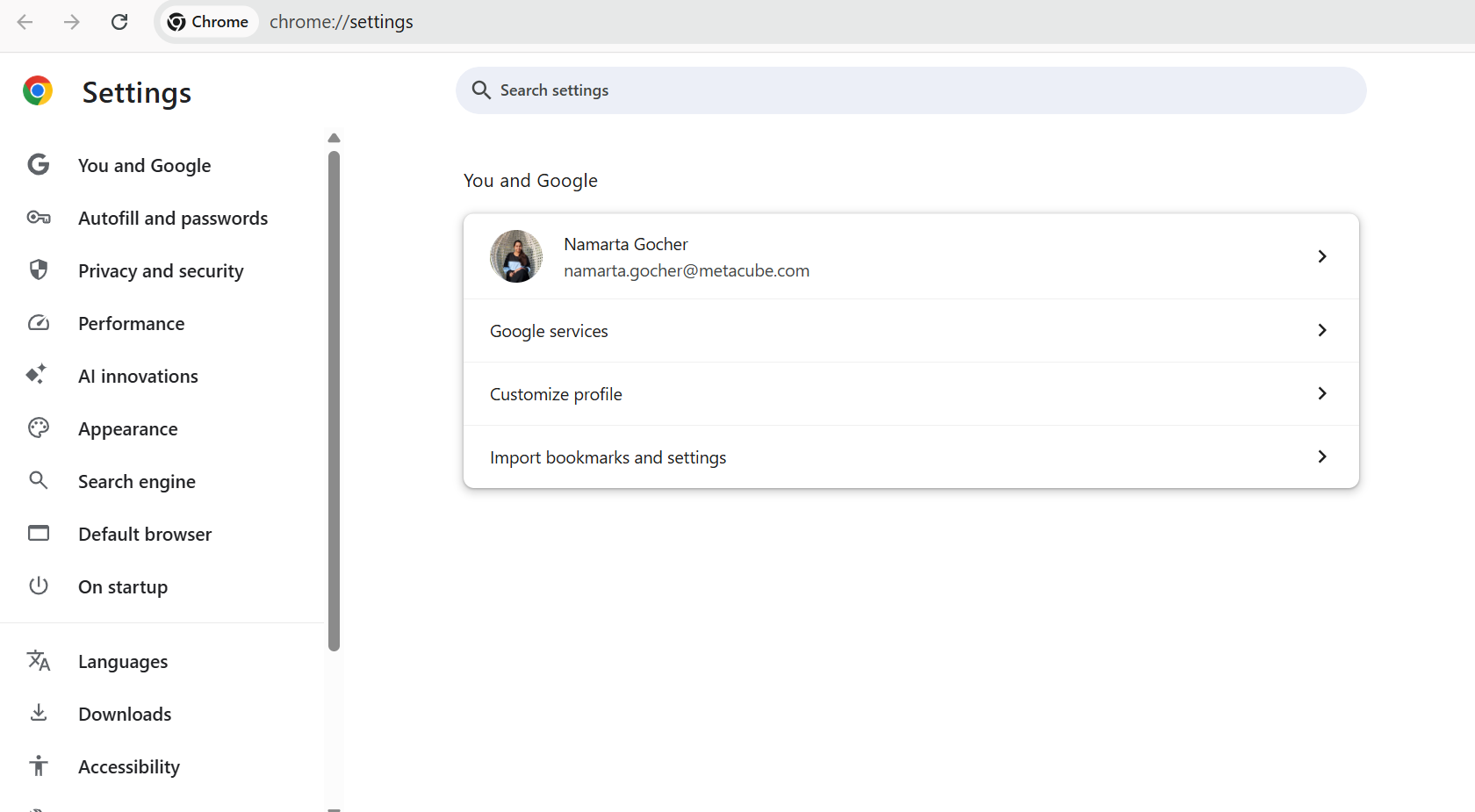
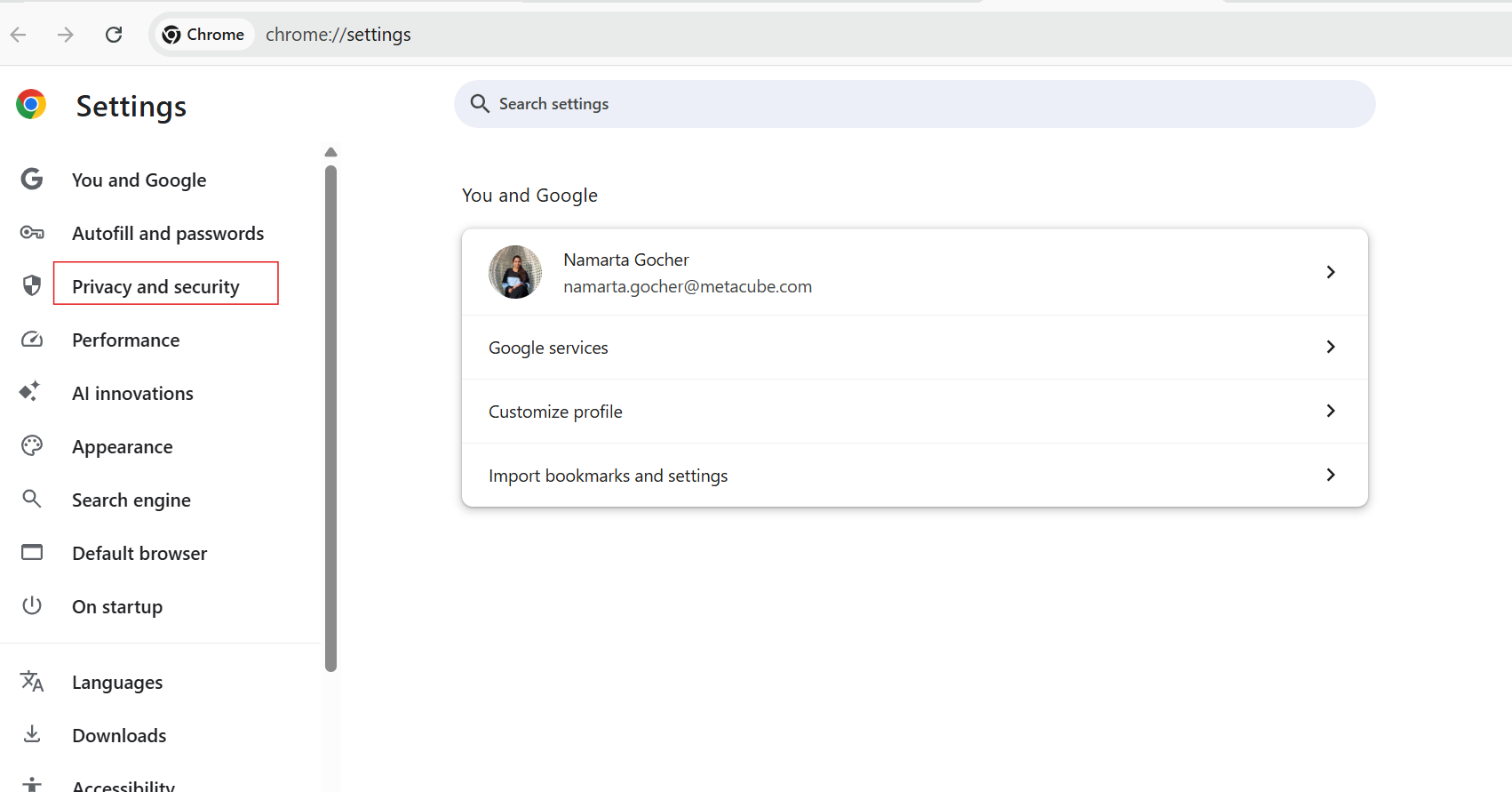
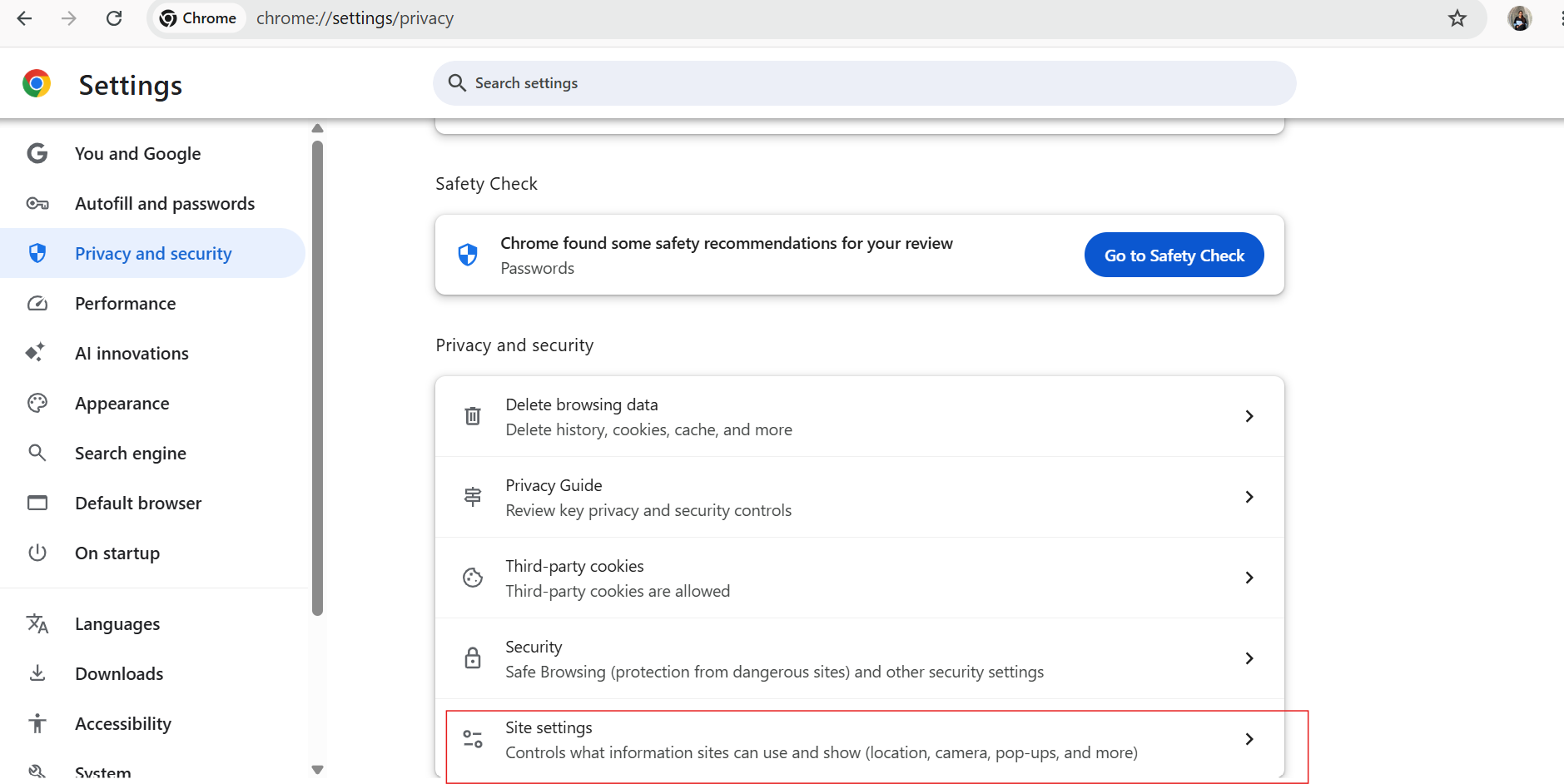
In the left sidebar, click Privacy and security.
Select Site settings.
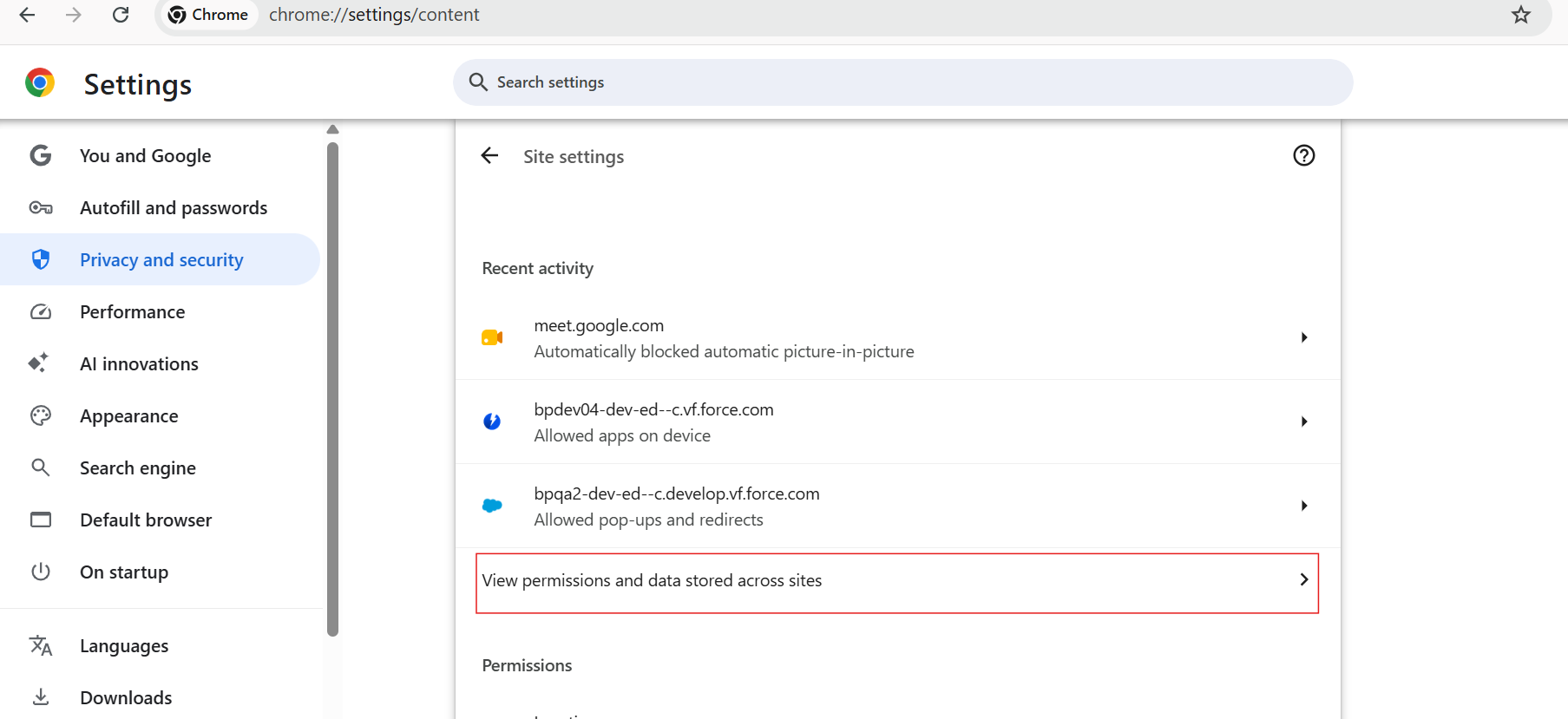
Scroll down and click View permissions and data stored across sites.
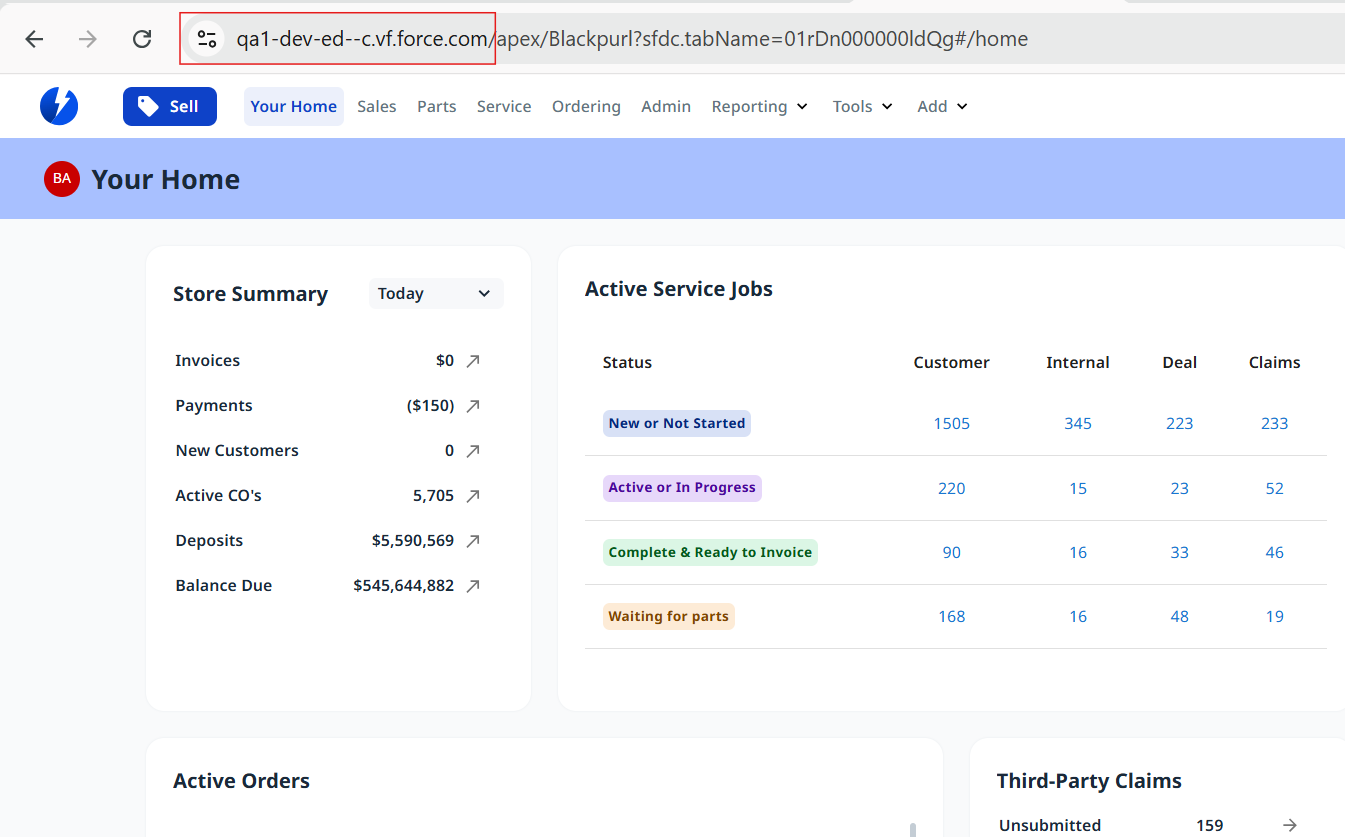
Go back to your Blackpurl tab and copy the base URL of your org from the address bar — the part of the address ending in .force.com (everything before the first “/”).
Return to the Chrome settings tab and paste the URL into the search bar at the top of the All sites list. The matching site (force.com) will appear.
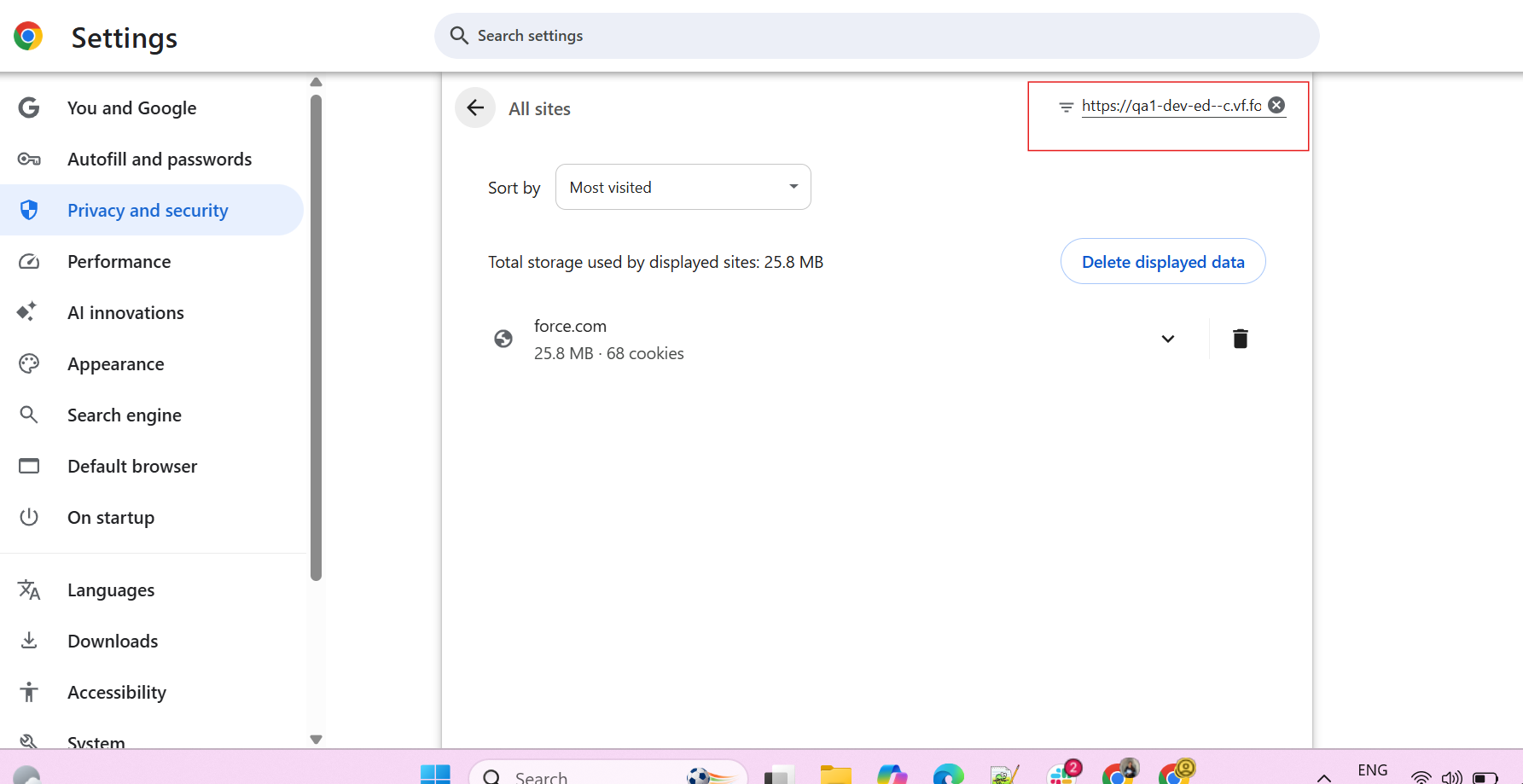
Click the trash can icon next to the site to delete its stored data.
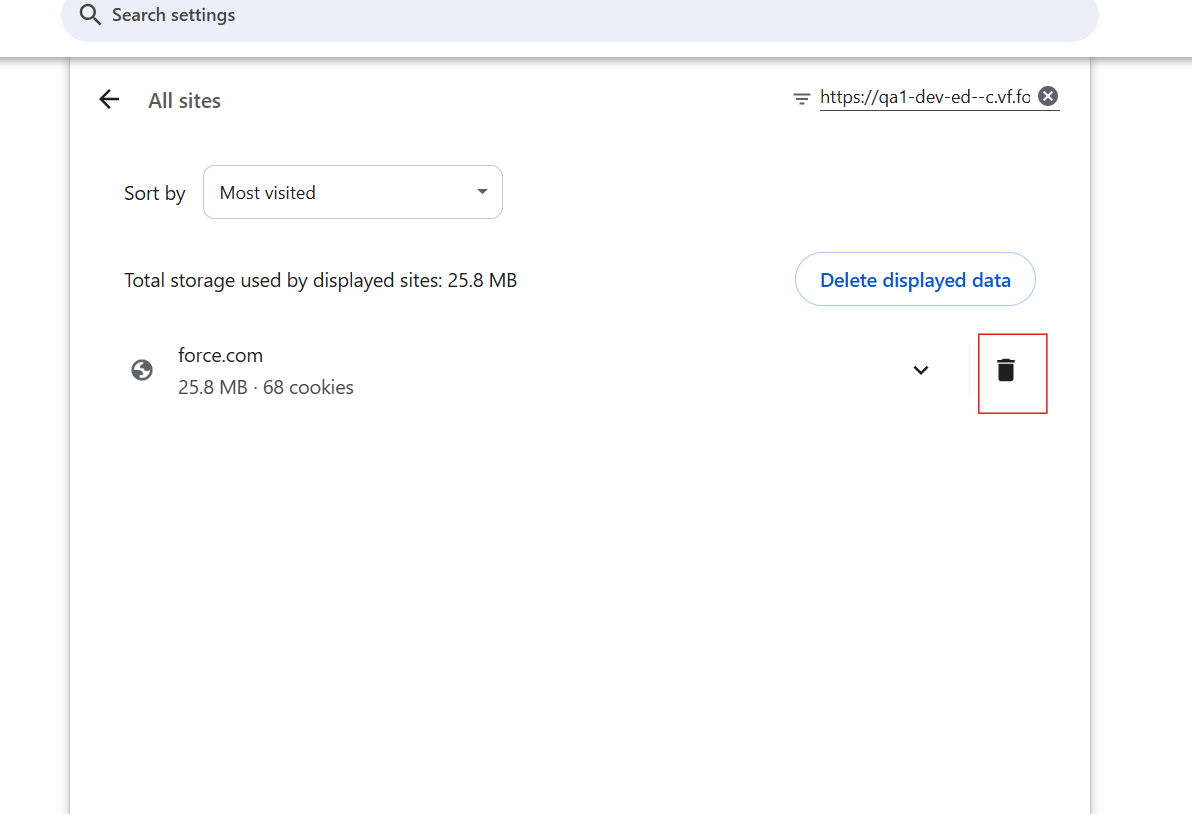
After Clearing the Data
Return to your Blackpurl tab, log out and then log back in. The page should now load correctly.
Still Having Trouble?
If the issue persists after clearing site data, contact Blackpurl Support and let us know which page is affected and what you’ve already tried.
Was this article helpful?
That’s Great!
Thank you for your feedback
Sorry! We couldn't be helpful
Thank you for your feedback
Feedback sent
We appreciate your effort and will try to fix the article